Peel app icon

Peel · for iPhone & iPad

Turn any video into an animated sticker

Pick a clip, trim it to the perfect moment, and Peel saves a Live Photo that iOS turns into a sticker for Messages, Notes and more.

Download on theApp Store

Free · iOS 17 or later

  • No account
  • No ads
  • Videos never leave your phone
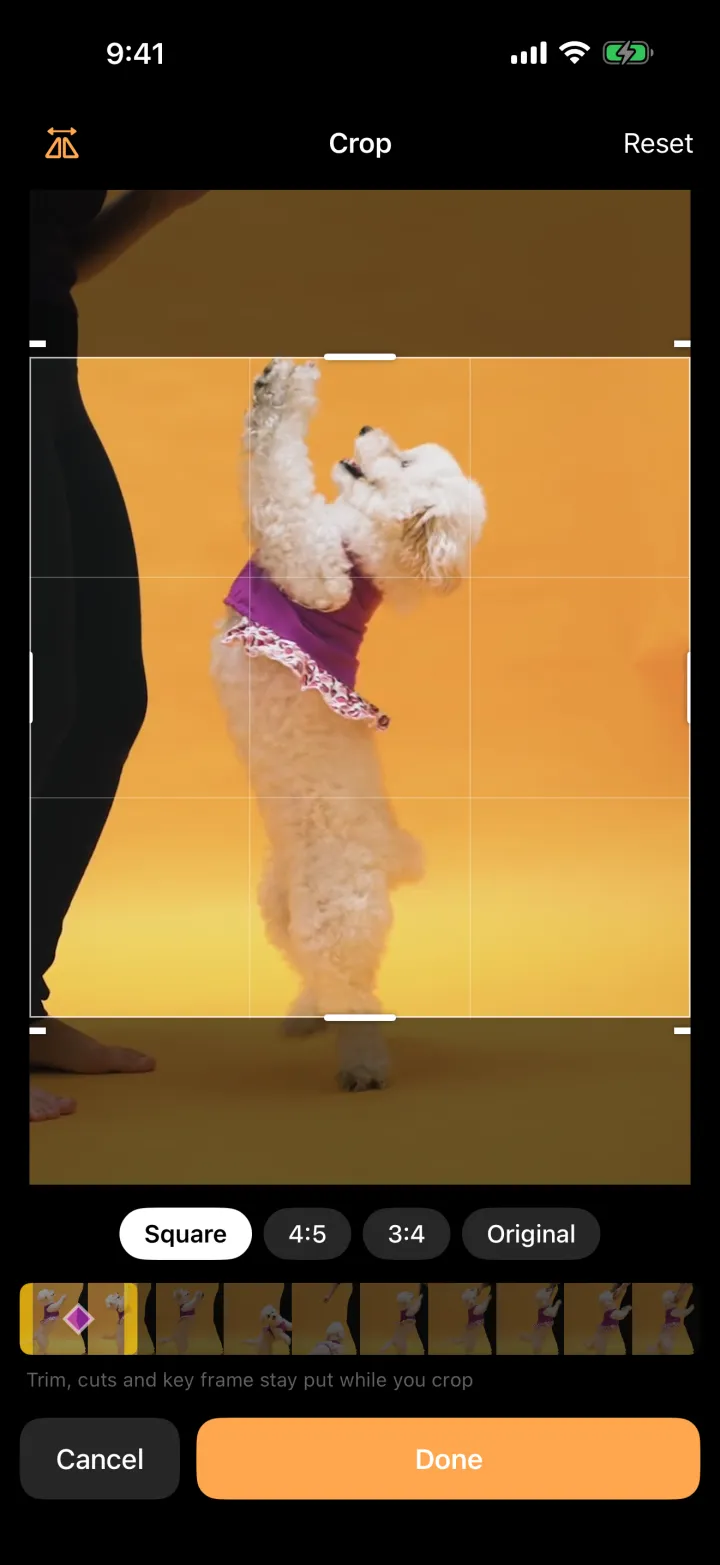
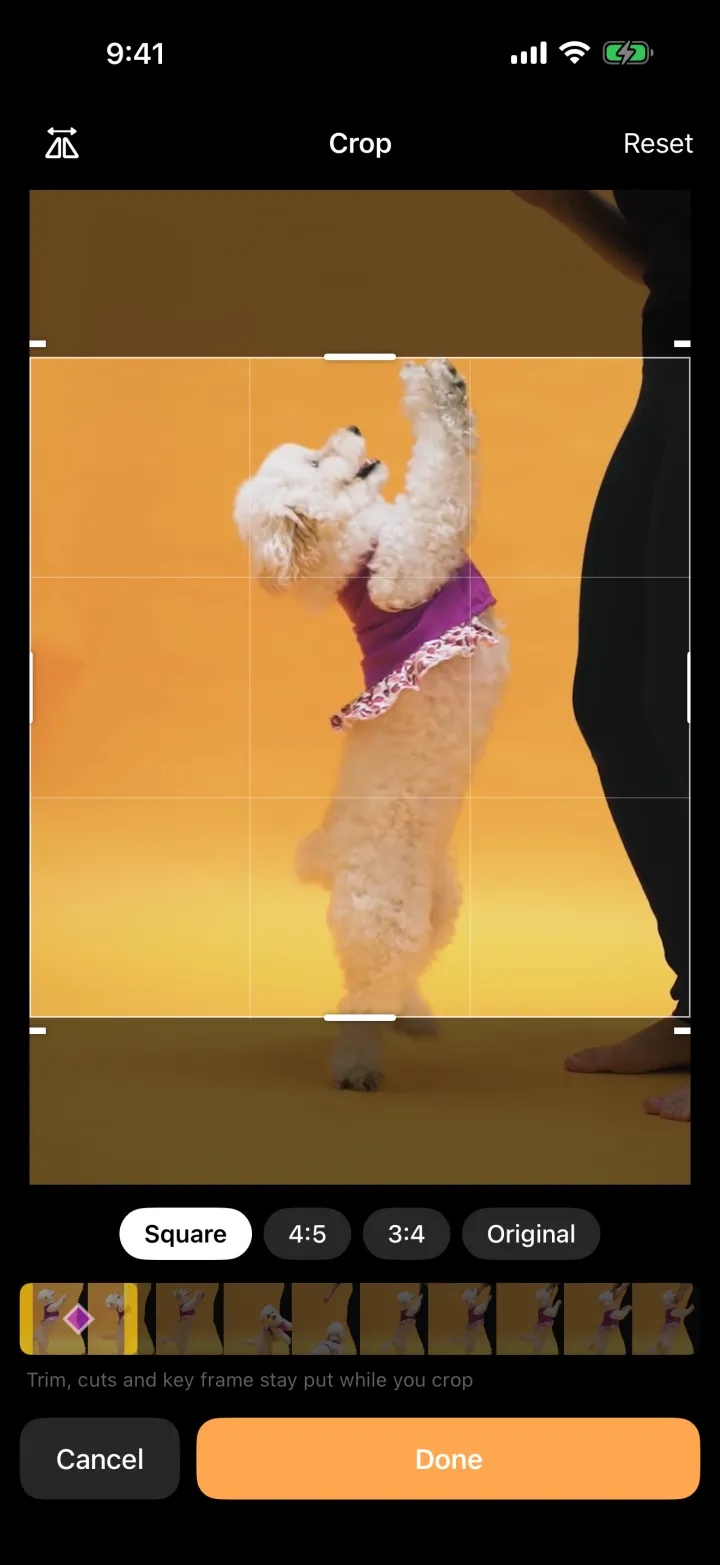
Peel’s full-screen crop editor framing a video of a dancing dog in a square crop
An animated sticker made with Peel: a poodle in a purple dress dancing on its hind legs

The sticker beside the phone was made from this same clip: the dog lifted out of its background and looped.

How it works

Most stickers take less than a minute, start to finish.

  1. 1

    Pick a video or GIF

    Anything in your photo library or Files. Peel marks the moments that will lift cleanly as a sticker.

  2. 2

    Trim, crop and loop

    Drag to the exact moment, choose the frame your sticker shows at rest, crop it square and add a bounce.

  3. 3

    Save and stick

    Peel saves a real Live Photo. Touch and hold it in Photos, tap Add Sticker, and it’s in your sticker drawer.

Features

Trim

A timeline built for real footage

Pinch to zoom the filmstrip, drag to scan a long video, and set your in and out points exactly. The key frame, the still your sticker shows at rest, gets its own lane so it never fights the trim handles.

  • Frame-accurate key frame selection
  • Smart frame scoring flags the moments that lift cleanly, and Snap key jumps to the best one
  • Longer selections speed up automatically to fit
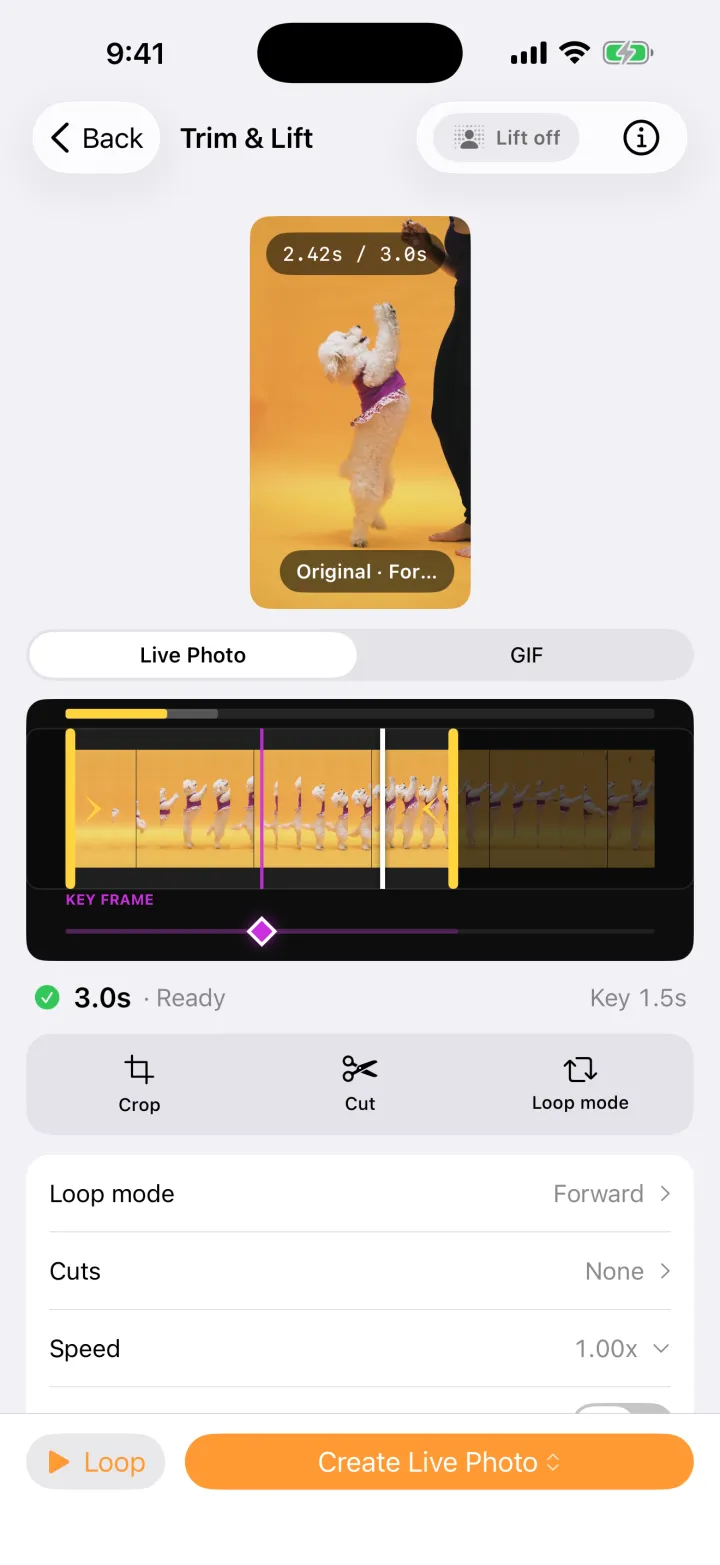
Peel’s trim screen: a dancing dog above a zoomable filmstrip with yellow trim handles and a purple key frame marker

Crop & mirrorMirror is new in 1.4

Frame it. Flip it. Make a pair.

A full-screen crop editor with the aspect ratios stickers love, and what you frame is exactly what exports. Flip the clip so your sticker faces the way you want, or tap Save Mirrored Copy after saving to make its twin for a matching left-and-right pair.

  • Square, 4:5, 3:4 or the original shape
  • Your trim and key frame stay put while you crop
  • Save a mirrored copy from the success screen or from History
Peel’s full-screen crop editor with a square crop and Flip turned on, showing the dog mirrored to face the other way

Loop

Loops that never jump-cut

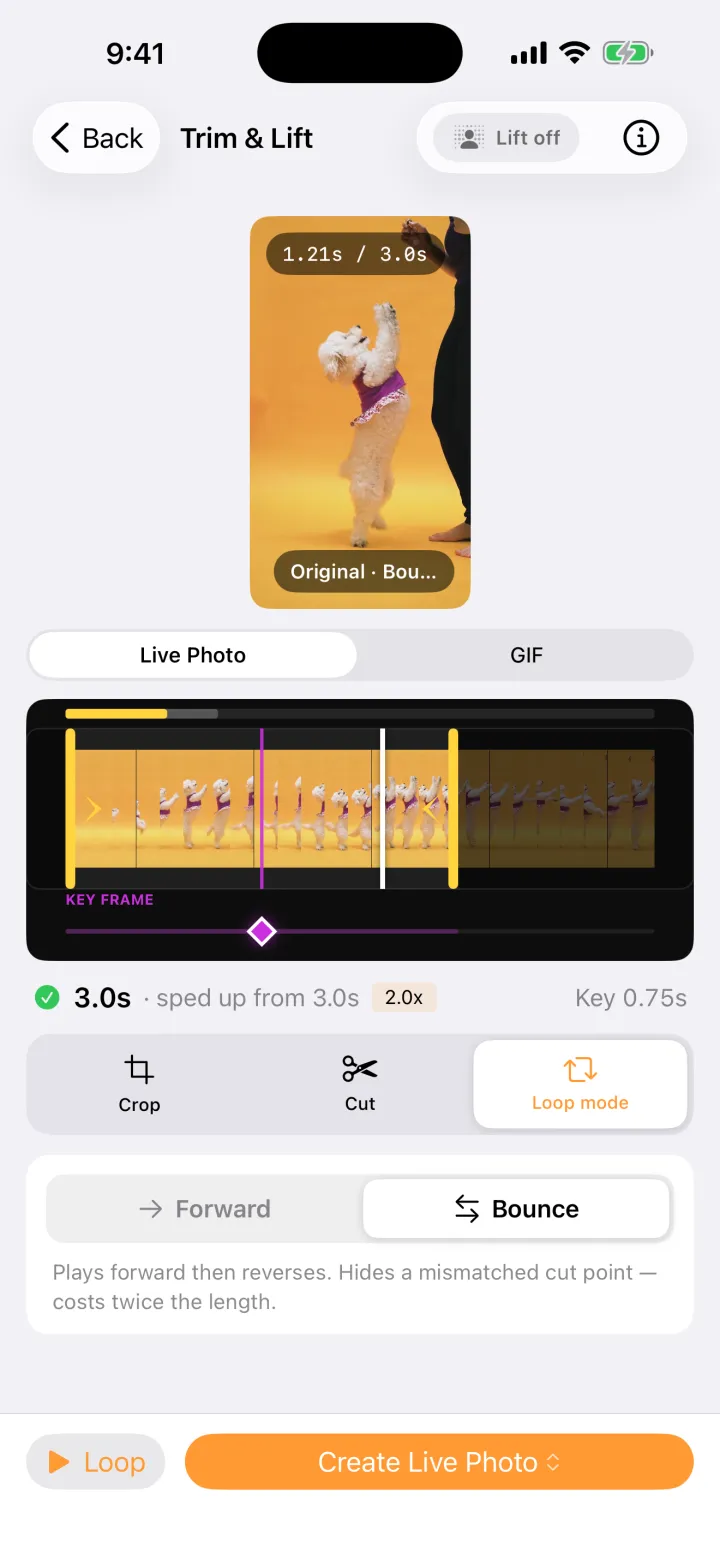
Bounce plays your clip forward and then backward, so the loop is seamless even when the start and end don’t match. Cut awkward moments out of the middle and set the speed you want.

  • Forward or Bounce loop modes
  • Cut up to three spans out of a clip
  • Playback speed from 1× to 3×, with sound on or off
Peel’s Loop mode panel with Bounce selected and the clip sped up 2×

GIF

Need a GIF instead? Done.

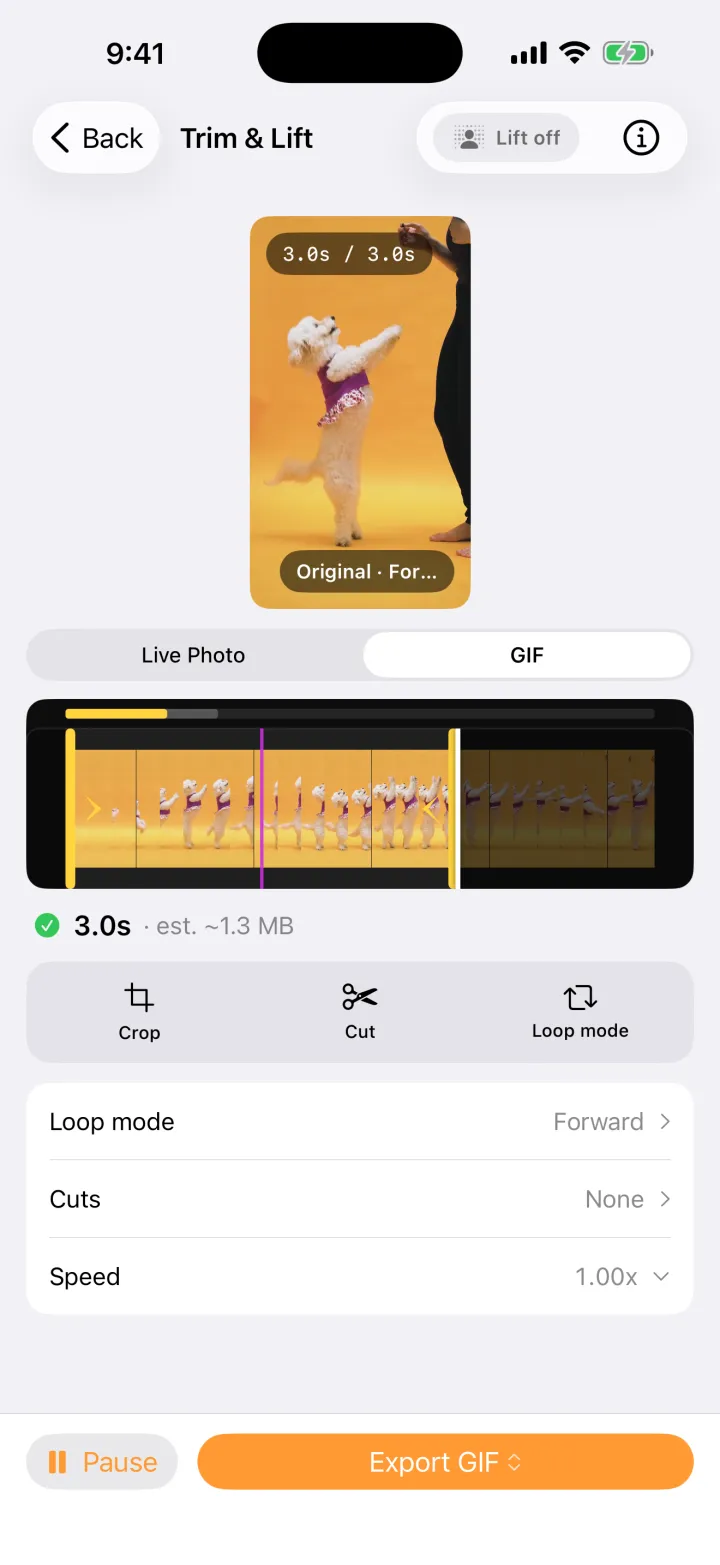
Switch the output to GIF for longer clips and see a live file-size estimate before you export. Peel reads GIFs too, so you can turn a favorite GIF into a Live Photo sticker.

  • GIF mode lifts the three-second Live Photo limit
  • Live size estimate as you edit
  • Import GIFs from Photos or Files
Peel in GIF mode, showing an estimated file size of about 1.3 MB and an Export GIF button

Stick

From Peel to Messages in three taps

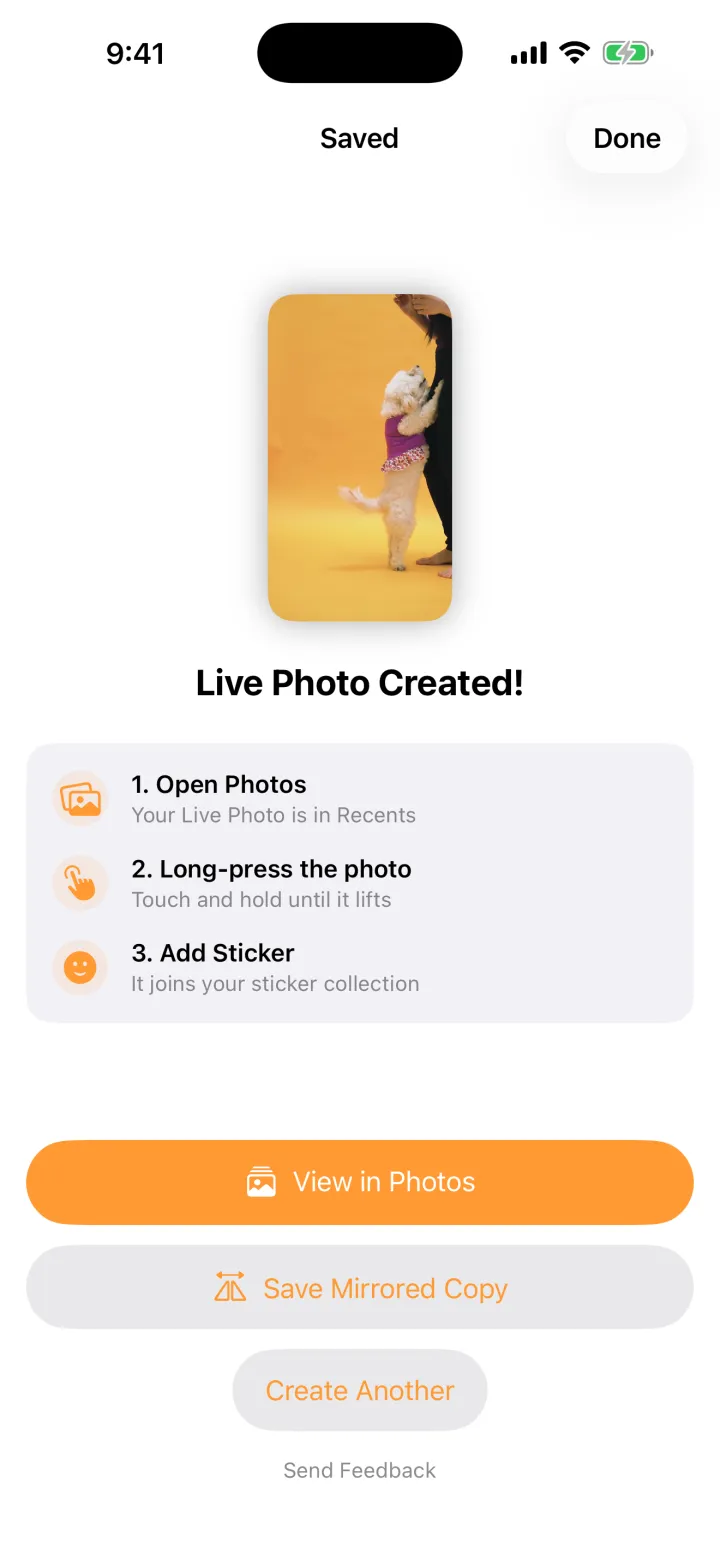
When your Live Photo is saved, Peel shows you exactly what to do next: open Photos, touch and hold your photo until the subject lifts, and tap Add Sticker. It lands in your sticker drawer everywhere iOS has one.

  • One tap to open your photo in Photos
  • Create another, or save a mirrored copy
Peel’s success screen: Live Photo Created, with three numbered steps to add it as a sticker

And the little things

Subject lift preview

See your sticker’s cutout before you save, powered by Apple’s Vision framework.

Choose your subjects

When Peel finds more than one subject, pick which ones make the sticker.

Project history

Your last ten projects, ready to rename, share, mirror or make again.

Share Live Photos

Send the paired photo and video straight from the app, no Photos trip needed.

Built for iPad too

The same editor with room to breathe on the big screen.

Made for iOS 17+

Uses Apple’s native Live Photo format, so stickers work everywhere iOS supports them.

Your videos stay yours

Peel does all of its work on your iPhone. There’s no account to create, nothing is uploaded, and there are no ads. The only thing Peel sends is anonymous diagnostics that help us fix bugs, with no personal data attached. Read the privacy policy.

Questions, answered

How do I turn a video into a sticker on iPhone?

Open Peel, pick a video or GIF, trim it to a short moment and tap Create Live Photo. Then open that Live Photo in Photos, touch and hold the subject until it lifts, and tap Add Sticker. The sticker is now in your sticker drawer in Messages, Notes and other apps.

Will my sticker actually move?

Yes. Peel saves a Live Photo, and iOS turns a Live Photo into an animated sticker when you add it from Photos. Short clips with one clear subject against a simple background make the best stickers.

How long can my clip be?

Live Photos work best at about three seconds. You can trim as short as 0.3 seconds, and longer selections are sped up automatically to fit. If you want something longer, switch the output to GIF.

Can I use a GIF?

Yes. Import a GIF just like a video, and export any project as a GIF with your choice of quality and frame rate.

What do I need to use Peel?

An iPhone or iPad running iOS 17 or later. Stickers made from Live Photos need iOS 17 as well.

Is Peel really free?

Yes. Peel is free to download and use, with no ads, no in-app purchases and no account to create.

Does Peel upload my videos?

No. Every step happens on your device and your videos never leave it. Peel sends only anonymous diagnostics through TelemetryDeck, which collects no personal data.

Something else? Visit Peel support or email hello@tangentlabs.io.

Your camera roll is full of stickers

Peel is free on the App Store for iPhone and iPad.

Download on theApp Store
An animated sticker made with Peel: a poodle in a purple dress dancing on its hind legs